
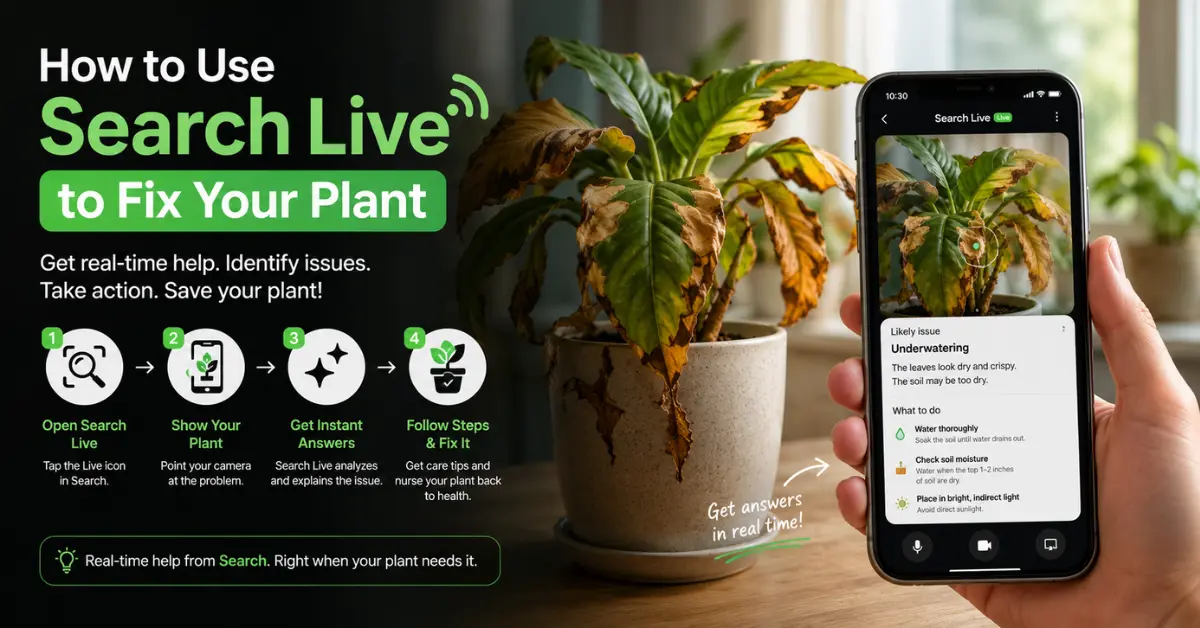
You noticed something wrong with your plant. Maybe the leaves are turning yellow, the tips are brown and crunchy, or the whole thing looks like it’s slowly giving up. You pulled out your phone, opened Google, and typed: tell me how to use Search Live to fix my plant.
Good instinct. AI-powered tools like Google Search Live and Gemini Live have genuinely changed how everyday plant owners troubleshoot problems — no botany degree required. But there’s a right way to use them, and a wrong way that gets you vague answers and a dead plant anyway.
This guide covers everything: what Search Live actually is, how to use it properly for plant diagnosis, what it can and can’t detect, and what to do after you get a diagnosis. It also fills in the gaps that most other guides skip.
What Is Search Live (And How Is It Different from Google Lens)?
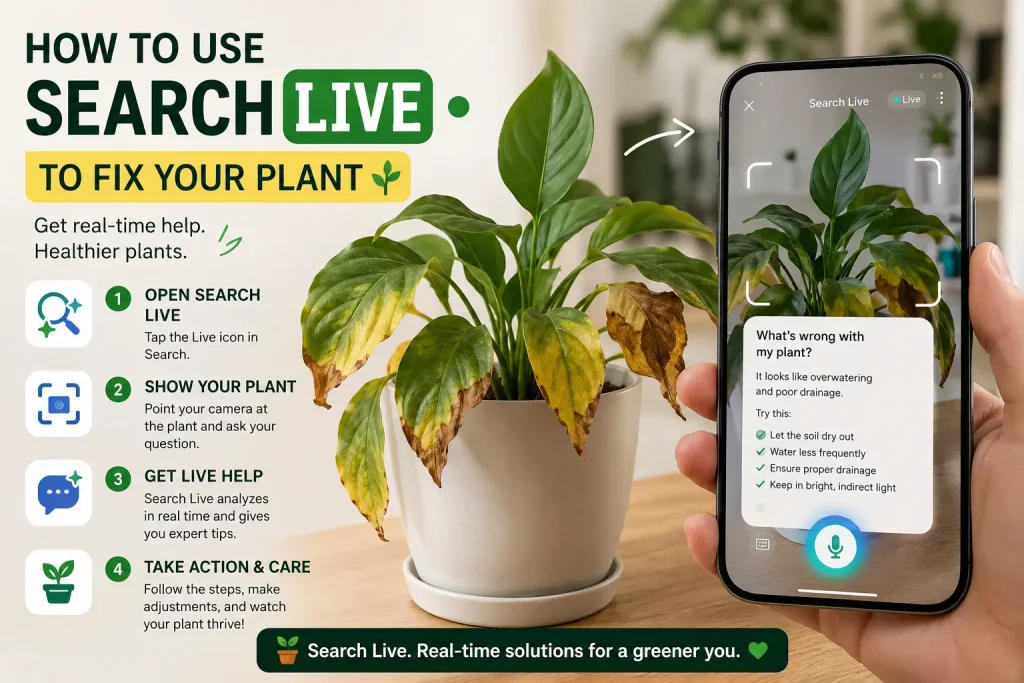
Search Live is a real-time AI visual search feature built into Google’s Gemini app and supported Android devices. Think of it as Google Lens, but smarter and conversational.
Here’s the key difference:
- Google Lens takes a single photo and returns a static result — like a reverse image search with some plant identification on top.
- Search Live / Gemini Live keeps the camera open and lets you have a back-and-forth conversation while it watches. You can move the camera, show different angles, and ask follow-up questions like you’re talking to a knowledgeable friend.
For plant care, that conversational ability is everything. A single photo rarely tells the whole story. Being able to ask “wait, could this also be root rot?” or “what if the soil stays damp for days?” makes the diagnosis far more useful.
Before You Start: What You’ll Need
- An Android phone (Pixel or other Android running a recent OS) or the Gemini app on Android/iOS
- A reasonably well-lit spot near your plant
- The plant in front of you — don’t try this from memory or old photos if you want accurate results
Step-by-Step: How to Use Search Live to Fix Your Plant
Step 1: Open Gemini Live
Open the Google Gemini app on your phone. Tap the Live button (it usually looks like a camera or video icon). This activates the real-time visual mode.
If you don’t have the Gemini app yet, download it free from the Play Store or App Store. It’s tied to your Google account — no separate signup needed.
Alternative: On some Android devices, you can activate Search Live directly from Google Search by tapping the camera icon and selecting “Live.”
Step 2: Position Your Plant Properly
Before you say anything, set up your shot. This step matters more than most guides admit.
- Place your plant near a window or in natural light — avoid harsh direct flash
- Start by showing the whole plant first, so the AI can assess the overall shape and condition
- Then move in closer to the problem area: discolored leaves, spots, mushy stems, or whatever caught your attention
- Flip leaves over — the underside of leaves reveals a lot (pests often hide there, and yellowing patterns differ on the underside)
Poor lighting and shaky camera are the most common reasons people get bad AI plant diagnoses.
Step 3: Describe What You’re Seeing, Then Ask
Don’t just silently point the camera. Talk to it. Say something like:
“I have a pothos. The leaves are turning yellow, starting from the older ones at the base. The soil has been staying wet for about a week. Can you tell me what’s wrong?”
The more context you give — plant type, how long the issue has been happening, watering habits, light conditions — the better the diagnosis. Search Live combines what it sees with what you tell it.
Effective questions to ask:
- “Why are the lower leaves yellowing but the new growth looks fine?”
- “Is this overwatering or a nutrient deficiency?”
- “These white sticky spots — are they mealybugs or something else?”
- “The stem is soft near the soil. Does that look like root rot to you?”
- “Should I repot this or is it salvageable?”
Vague questions get vague answers. Specific questions get actionable ones.
Step 4: Read the Diagnosis — Then Question It
Search Live will suggest possible causes. The most common it identifies correctly:
- Overwatering and underwatering
- Root rot (based on stem condition and soil appearance)
- Common pests: mealybugs, spider mites, fungus gnats, aphids
- Fungal issues: powdery mildew, leaf spot
- Nutrient deficiencies (especially nitrogen, iron, magnesium)
- Light stress (too much sun or too little)
- Low humidity damage
- Salt buildup from tap water or fertilizer
Important caveat: AI tools are genuinely helpful, but they work from visual clues only. They can’t smell the musty odor of root rot, feel whether roots are slimy, or check your actual soil moisture levels. Treat the diagnosis as a strong hypothesis — then verify it yourself before acting.
Step 5: Ask Follow-Up Questions
This is where Search Live beats every static plant app. After the initial diagnosis, keep the conversation going:
- “What’s the first thing I should do right now?”
- “If it is root rot, how do I check the roots without killing the plant?”
- “How long does this type of plant take to recover once I fix the problem?”
- “Should I cut off the damaged leaves, or leave them?”
- “Is this plant toxic to cats? I want to make sure before I handle it more.”
You can also ask it to walk you through a specific action step by step — like how to unpot a plant safely, or how to mix a neem oil spray for pests.
The 6 Most Common Plant Problems Search Live Can Help Fix
1. Yellow Leaves
Yellow leaves are the most searched plant problem — and the most misdiagnosed, because almost everything causes them.
Search Live looks for:
- Which leaves are yellowing (old vs. new growth tells a very different story)
- Yellowing pattern (all over, edges only, between the veins)
- Soil moisture clues in the image
What it usually catches:
- Overwatering (most common culprit in indoor plants)
- Nitrogen deficiency (leaves yellow uniformly from the bottom up)
- Root stress
What to ask: “Are the yellow leaves old ones at the bottom, or is it happening throughout the whole plant?” — then show both.
2. Brown Leaf Tips and Edges
Brown, crispy tips almost always point to environmental stress rather than disease.
Common causes: low humidity, tap water fluoride/chloride buildup, overfertilization, heat from vents or radiators.
Fix strategy: If Search Live confirms environmental stress, try switching to filtered or rainwater, moving the plant away from heating vents, and misting occasionally or using a pebble tray with water for humidity.
3. Wilting and Drooping
Counter-intuitively, both overwatering and underwatering cause drooping — so checking the soil before assuming thirst is critical.
Search Live helps by: Looking at stem firmness (visually), overall plant posture, and soil appearance. You can press a finger into the soil and show it on camera — wet, dark soil with a drooping plant almost always means overwatering or root rot.
4. White Spots or Fuzzy Patches
White residue can be:
- Powdery mildew (fungal, looks like flour dusted on leaves)
- Mealybugs (white, cottony clusters, often in leaf joints)
- Scale insects (waxy white bumps along stems)
- Mineral deposits from hard water (crusty, usually on soil surface or pot edges)
Search Live is particularly good at distinguishing mealybugs from powdery mildew — they look quite different up close, and the AI tends to get this one right.
Treatment differs completely — so getting this diagnosis right matters. Mealybugs need rubbing alcohol or neem oil. Powdery mildew needs a fungicide or diluted baking soda spray. Mineral deposits just need a wipe-down and a water change.
5. Black or Mushy Stems at the Base
This is usually root rot — one of the most serious indoor plant problems and the most common cause of houseplant death.
How to confirm: Pull the plant gently from its pot. Healthy roots are white or tan and firm. Rotten roots are brown or black, slimy, and smell bad.
Search Live limitation: It can’t see roots unless you actually unpot the plant and show them. But it can flag the warning signs (mushy stem, constant wet soil, yellowing leaves all at once) and tell you it’s time to investigate the roots.
Recovery steps:
- Remove plant from pot
- Trim all black/mushy roots with sterile scissors
- Let roots air-dry for 30 minutes
- Repot in fresh, well-draining soil
- Water lightly and wait — don’t water again until the top 2 inches of soil are dry
6. Pest Infestations
Search Live handles visible pest identification well. Spider mites leave a fine webbing on leaves (look on the underside). Fungus gnats leave small flies hovering around the soil. Aphids cluster on new growth.
After identification, ask the follow-up: “What’s the safest treatment for this pest if I have kids/pets at home?” — it’ll tailor the recommendation.
What Search Live Cannot Do (Be Honest With Yourself)
This is the section most guides skip, and it’s important.
Search Live cannot:
- Detect underground root problems it can’t see
- Tell you the exact soil moisture level
- Account for your specific local climate, tap water quality, or pot drainage
- Diagnose rare or unusual plant diseases accurately
- Replace a diagnosis from an actual horticulturalist for a valuable or rare plant
It works best for common houseplants with visible symptoms. For unusual tropical species, rare succulents, or symptoms that don’t respond to the first diagnosis — dig deeper. Check plant-specific forums, apps like PictureThis or iNaturalist, or consult a local nursery.
After the Diagnosis: The Real Work Begins
Getting the diagnosis is step one. What kills plants after that is acting too fast, too aggressively, or with the wrong fix.
General principles that Search Live might not emphasize:
Don’t panic-repot.
Repotting is stressful for plants even when healthy. Only repot if you’ve confirmed root rot or if the plant is severely rootbound.
One variable at a time.
If you change the watering, the light, and the fertilizer all at once, you won’t know what actually helped. Make one change, wait a week, observe.
Trim damaged leaves, but not all at once.
Yellow or brown leaves won’t turn green again — they’re spent. But the plant is still using them for some energy. Remove a few at a time rather than stripping the plant bare.
Recovery takes weeks, not days.
Most indoor plants show improvement from a correct fix in 2–4 weeks. New growth is the clearest sign you’ve solved the problem.
Quick Reference: Search Live vs. Other Plant Diagnosis Methods
| Method | Speed | Accuracy | Cost | Conversation |
|---|---|---|---|---|
| Google Search Live / Gemini Live | Instant | Good for common issues | Free | Yes |
| PictureThis App | Instant | Good | Free/paid tier | No |
| iNaturalist | Hours/days | Excellent (community) | Free | No |
| Local nursery | Next visit | Very good | Free advice | Yes |
| Horticulturalist | Appointment | Best | Paid | Yes |
For everyday houseplant troubleshooting, Search Live is genuinely the fastest starting point. Just don’t stop there if the problem doesn’t improve.
5 Habits That Prevent Plant Problems Before They Start
Once Search Live helps you fix the current crisis, here’s how to avoid the next one:
1. Check soil before watering, always.
Stick a finger 2 inches into the soil. If it’s still moist, wait. Most houseplants die from overwatering, not neglect.
2. Match the plant to your home’s actual light.
Don’t buy a sun-loving plant for a dark apartment corner. Struggling light conditions cause most of the slow-burn problems that are hard to diagnose.
3. Use pots with drainage holes.
No drainage hole means water pools at the bottom and roots rot. This alone eliminates a huge percentage of common plant problems.
4. Wipe leaves occasionally.
Dust blocks light absorption. A damp cloth over the leaves every few weeks makes a real difference, especially for large-leaved tropical plants.
5. Observe, don’t just water.
Spend 30 seconds really looking at your plant when you check on it. Changes in color, texture, or posture are early warnings that are easy to catch — and fix — before they become serious.
Frequently Asked Questions
Does Search Live work for outdoor plants too?
Yes. Point it at a garden shrub, vegetable plant, or tree and it works the same way. Outdoor plant problems like blight, pest damage, and sun scorch are all things it can identify visually.
Can I use Search Live in a language other than English?
Gemini Live supports multiple languages. You can speak to it in your preferred language and it will respond accordingly.
Is Search Live available on iPhone?
Yes. Download the Google Gemini app from the App Store. The Live feature is available on iOS as well as Android.
My plant has had the same problem for months. Can Search Live still help?
Yes, but for chronic problems it’s worth showing it the plant at multiple stages — new damage vs. old. Chronic issues often point to a structural problem (wrong pot, wrong soil, wrong location) rather than a quick fix.
How do I know if my diagnosis was correct?
The clearest sign: new growth is healthy. If you fix the root cause, new leaves will emerge looking normal. Old damaged leaves won’t recover, but new ones will.
Final Thoughts
Search Live and Gemini Live are genuinely useful tools for plant care — not because AI magically knows everything about your plant, but because the combination of real-time visual analysis and conversational follow-up gets you to the right answer faster than scrolling through forum posts and hoping your symptoms match someone else’s photo.
Use it as your first step when something goes wrong. Be specific with your questions. Give it good lighting and multiple angles. Then — and this part matters — actually apply the fix carefully and patiently.
Most houseplants are surprisingly resilient. With the right diagnosis and a little time, the ones that look hopeless often come back.
You May Also Like It:
How to Fix Shaky Hands Photography
how to wash a weighted blanket
